
Install Open WebUI (Linux) – One-Liner Installer Script with Docker & Caddy HTTPS


Need professional Open WebUI hosting or installation? At WZ-IT we handle consulting, installation, support, operation, maintenance and monitoring of your Open WebUI deployment - on our infrastructure or yours. Schedule your free consultation: Book a meeting.
Open WebUI is a powerful self-hosted web interface for Large Language Models. Whether you want to run local models with Ollama or connect to OpenAI, Open WebUI gives you a ChatGPT-like experience on your own infrastructure.
We've created a free, open-source installer script that deploys Open WebUI with Docker in minutes - complete with optional HTTPS, GPU support, and production-ready defaults.
Table of Contents
- What You Get
- Prerequisites
- Option 1: Quick Install (One Command)
- Option 2: Review Before Installing (Recommended)
- Installation Walkthrough
- Post-Installation Setup
- Useful Commands
- Connecting to LLM Backends
- Uninstallation
- Troubleshooting
- Source Code
What You Get
Our installer script provides:
- Automatic Docker installation - Docker and Docker Compose are installed if not present
- Interactive configuration - Choose your installation directory, domain, GPU support, and image variant
- Optional HTTPS - Caddy reverse proxy with automatic Let's Encrypt certificates
- GPU support - NVIDIA GPU acceleration for local model inference
- Production-ready setup - Sensible defaults for immediate use
Prerequisites
Before running the installer, ensure you have:
- A Linux server (Ubuntu, Debian, CentOS, RHEL, etc.)
bashandcurlinstalled (standard on most systems)sudoaccess for Docker installation- For HTTPS: A domain name with DNS pointing to your server
- For GPU: NVIDIA GPU with nvidia-docker installed
Option 1: Quick Install (One Command)
If you trust the source, deploy Open WebUI with a single command:
curl -fsSL https://raw.githubusercontent.com/wzitcom/public-scripts/main/open-source-apps/open-webui/install.sh | bash
Option 2: Review Before Installing (Recommended)
For security-conscious users, download and review the script first:
# Download the installer
curl -O https://raw.githubusercontent.com/wzitcom/public-scripts/main/open-source-apps/open-webui/install.sh

# Review the script contents
cat install.sh

# Make it executable and run
chmod +x install.sh
./install.sh
We always recommend reviewing scripts before execution, especially when running with elevated privileges.
Installation Walkthrough
When you run the installer, you'll see an interactive setup process:
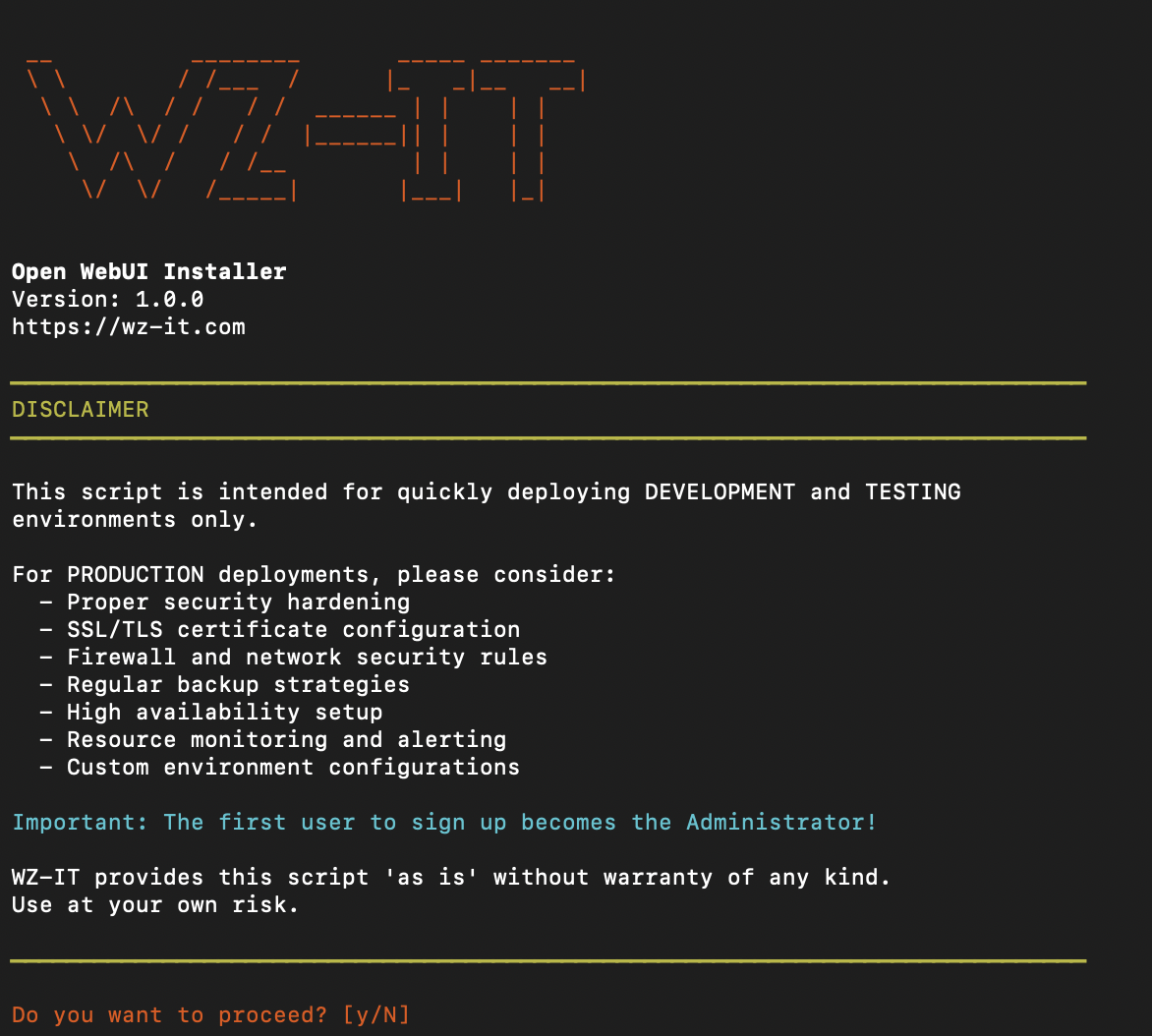
The script guides you through:
- Installation directory - Where to store configuration files (default:
~/open-webui) - Domain configuration - Optional domain for HTTPS setup
- GPU support - Enable NVIDIA GPU acceleration
- Image selection - Choose between full or slim Docker image
After configuration, the script:
- Installs Docker if needed
- Creates
docker-compose.ymlwith your settings - Sets up Caddy for HTTPS (if domain provided)
- Starts the containers
- Displays access information
Post-Installation Setup
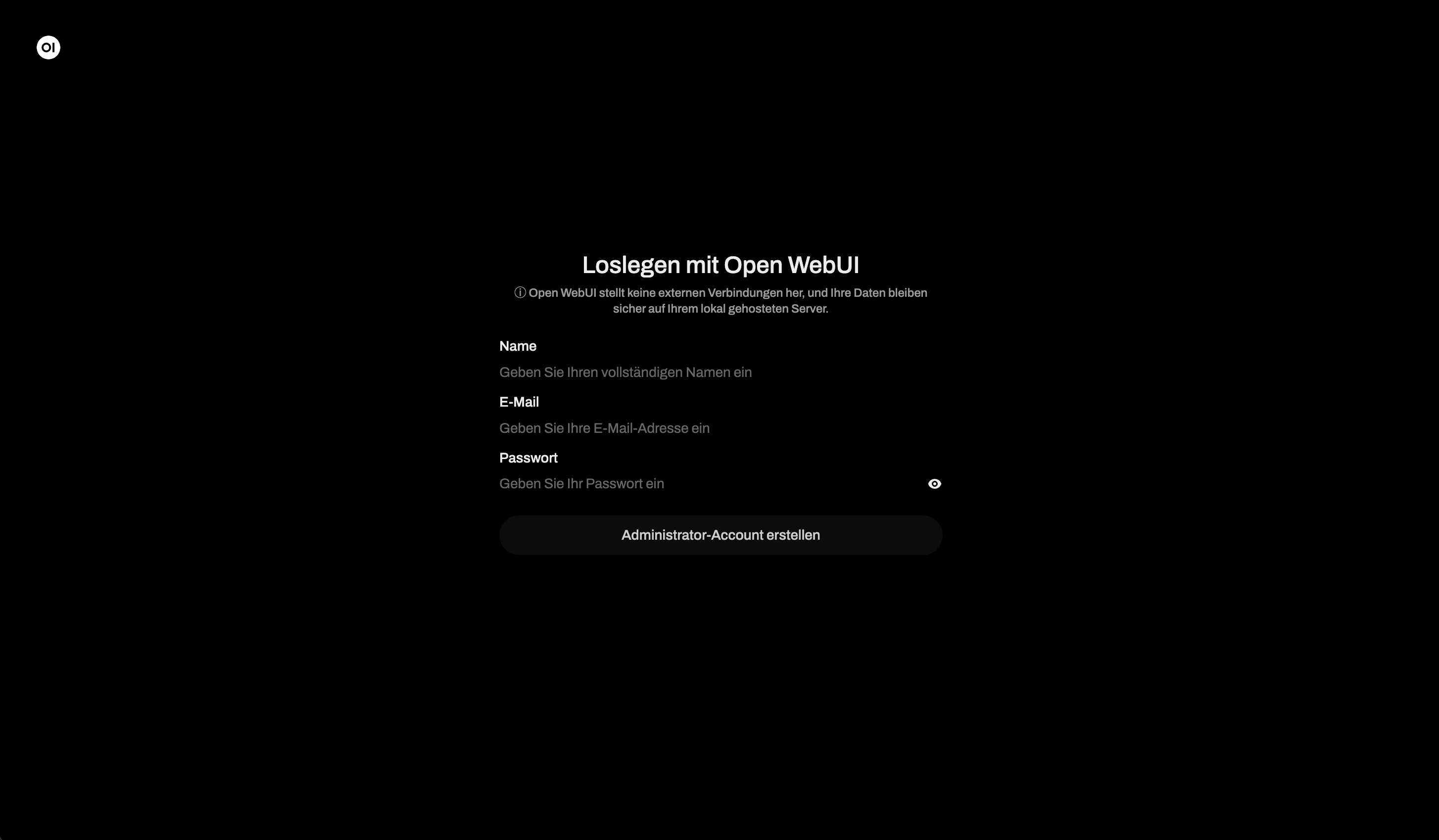
Once installation completes, you'll see the Open WebUI login screen:
First Login
- Navigate to your Open WebUI instance (http://localhost:3000 or your domain)
- Click "Sign up" to create an account
- The first user automatically becomes Administrator
Installation Files
Your installation directory contains:
| File | Purpose |
|---|---|
docker-compose.yml |
Docker service definitions |
.env |
Environment variables and API keys |
Caddyfile |
Caddy reverse proxy config (if using domain) |
Useful Commands
Navigate to your installation directory first:
cd ~/open-webui
Service Management
# View logs
docker compose logs -f
docker compose logs -f open-webui
docker compose logs -f caddy  # If using Caddy

# Stop services
docker compose down

# Start services
docker compose up -d

# Restart services
docker compose restart

# Check status
docker compose ps
Updates
# Pull latest images and restart
docker compose pull
docker compose up -d
Connecting to LLM Backends
Ollama (Local Models)
If running Ollama on the same machine:
cd ~/open-webui
nano .env
Add or uncomment:
OLLAMA_BASE_URL=http://host.docker.internal:11434
Then restart:
docker compose down && docker compose up -d
OpenAI API
Edit .env and add your API key:
OPENAI_API_KEY=sk-your-api-key-here
Restart the container to apply changes.
Uninstallation
To completely remove Open WebUI:
cd ~/open-webui

# Stop and remove containers
docker compose down

# Also remove volumes (WARNING: deletes all data!)
docker compose down -v

# Remove installation directory
cd ~
rm -rf ~/open-webui
Troubleshooting
Port Already in Use
If ports 80/443 are occupied (when using Caddy):
# Check what's using the ports
sudo lsof -i :80
sudo lsof -i :443
SSL Certificate Issues
# Check Caddy logs
docker compose logs caddy

# Verify DNS
nslookup your-domain.com
GPU Not Detected
# Verify nvidia-docker is working
docker run --rm --gpus all nvidia/cuda:11.0-base nvidia-smi
Container Won't Start
# Check container logs
docker compose logs open-webui

# Check container status
docker ps -a
Source Code
The installer script is open source and available on GitHub:
- Repository: github.com/wzitcom/public-scripts
- Open WebUI Installer: open-source-apps/open-webui
Feel free to review, fork, or contribute!
Disclaimer
This script is intended for quickly deploying development and testing environments.
For production deployments, please consider:
- Proper security hardening
- SSL/TLS certificate configuration
- Firewall and network security rules
- Regular backup strategies
- High availability setup
- Resource monitoring and alerting
- Custom environment configurations
Need a production-ready setup? Contact WZ-IT for professional Open WebUI installation and managed hosting services.
Frequently Asked Questions
Answers to important questions about this topic
Open WebUI is a self-hosted, feature-rich web interface for running and managing Large Language Models (LLMs). It supports multiple backends like Ollama and OpenAI, includes user management, chat history, RAG capabilities, and much more.
The installer works on all major Linux distributions including Ubuntu, Debian, CentOS, RHEL, Rocky Linux, AlmaLinux, Fedora, and openSUSE. Any system with bash and curl that can run Docker is supported.
Yes. If Docker is not already installed on your system, the script will automatically install Docker and Docker Compose for you.
Yes. When you provide a domain name during installation, the script configures Caddy as a reverse proxy with automatic Let's Encrypt SSL certificates.
Yes. The installer prompts you to enable GPU support. If selected, it configures the Docker container to use NVIDIA GPUs for accelerated inference.
After installation, edit the .env file in your installation directory and set OLLAMA_BASE_URL to your Ollama instance (e.g., http://host.docker.internal:11434), then restart with docker compose up -d.
The installer creates a functional deployment quickly. For production environments, we recommend additional security hardening, proper backup strategies, and monitoring - which WZ-IT can provide as a managed service.
Absolutely. We recommend downloading the script first with curl -O and reviewing it before execution. The script is open source and available on GitHub.
Written by
Timo Wevelsiep
Co-Founder & CEO
Co-Founder of WZ-IT. Specialized in cloud infrastructure, open-source platforms and managed services for SMEs and enterprise clients worldwide.
LinkedInLet's Talk About Your Idea
Whether a specific IT challenge or just an idea – we look forward to the exchange. In a brief conversation, we'll evaluate together if and how your project fits with WZ-IT.
Trusted by leading companies













Timo Wevelsiep & Robin Zins
CEOs of WZ-IT