

Try Open WebUI first and then run it in your organisation?
The script gets Open WebUI running in minutes; updates, backups and monitoring stay with you afterwards. If you would rather hand that over, we run Open WebUI as the AI platform: a dedicated instance with models operated in Germany by German providers, SSO and a Section 203 supplementary agreement, from €149.90 excl. VAT per month. For data that must not leave the building, the AI Cube brings Open WebUI preconfigured into your own network.
Open WebUI is a powerful self-hosted web interface for Large Language Models. Whether you want to run local models with Ollama or connect to OpenAI, Open WebUI gives you a ChatGPT-like experience on your own infrastructure.
We've created a free, open-source installer script that deploys Open WebUI with Docker in minutes - complete with optional HTTPS, GPU support, and production-ready defaults.
Table of Contents
- What You Get
- Prerequisites
- Option 1: Quick Install (One Command)
- Option 2: Review Before Installing (Recommended)
- Installation Walkthrough
- Post-Installation Setup
- Useful Commands
- Connecting to LLM Backends
- Uninstallation
- Troubleshooting
- Source Code
What You Get
Our installer script provides:
- Automatic Docker installation - Docker and Docker Compose are installed if not present
- Interactive configuration - Choose your installation directory, domain, GPU support, and image variant
- Optional HTTPS - Caddy reverse proxy with automatic Let's Encrypt certificates
- GPU support - NVIDIA GPU acceleration for local model inference
- Production-ready setup - Sensible defaults for immediate use
Prerequisites
Before running the installer, ensure you have:
- A Linux server (Ubuntu, Debian, CentOS, RHEL, etc.)
bashandcurlinstalled (standard on most systems)sudoaccess for Docker installation- For HTTPS: A domain name with DNS pointing to your server
- For GPU: NVIDIA GPU with nvidia-docker installed
Option 1: Quick Install (One Command)
If you trust the source, deploy Open WebUI with a single command:
curl -fsSL https://raw.githubusercontent.com/wzitcom/public-scripts/main/open-source-apps/open-webui/install.sh | bash
Option 2: Review Before Installing (Recommended)
For security-conscious users, download and review the script first:
# Download the installer
curl -O https://raw.githubusercontent.com/wzitcom/public-scripts/main/open-source-apps/open-webui/install.sh

# Review the script contents
cat install.sh

# Make it executable and run
chmod +x install.sh
./install.sh
We always recommend reviewing scripts before execution, especially when running with elevated privileges.
Installation Walkthrough
When you run the installer, you'll see an interactive setup process:
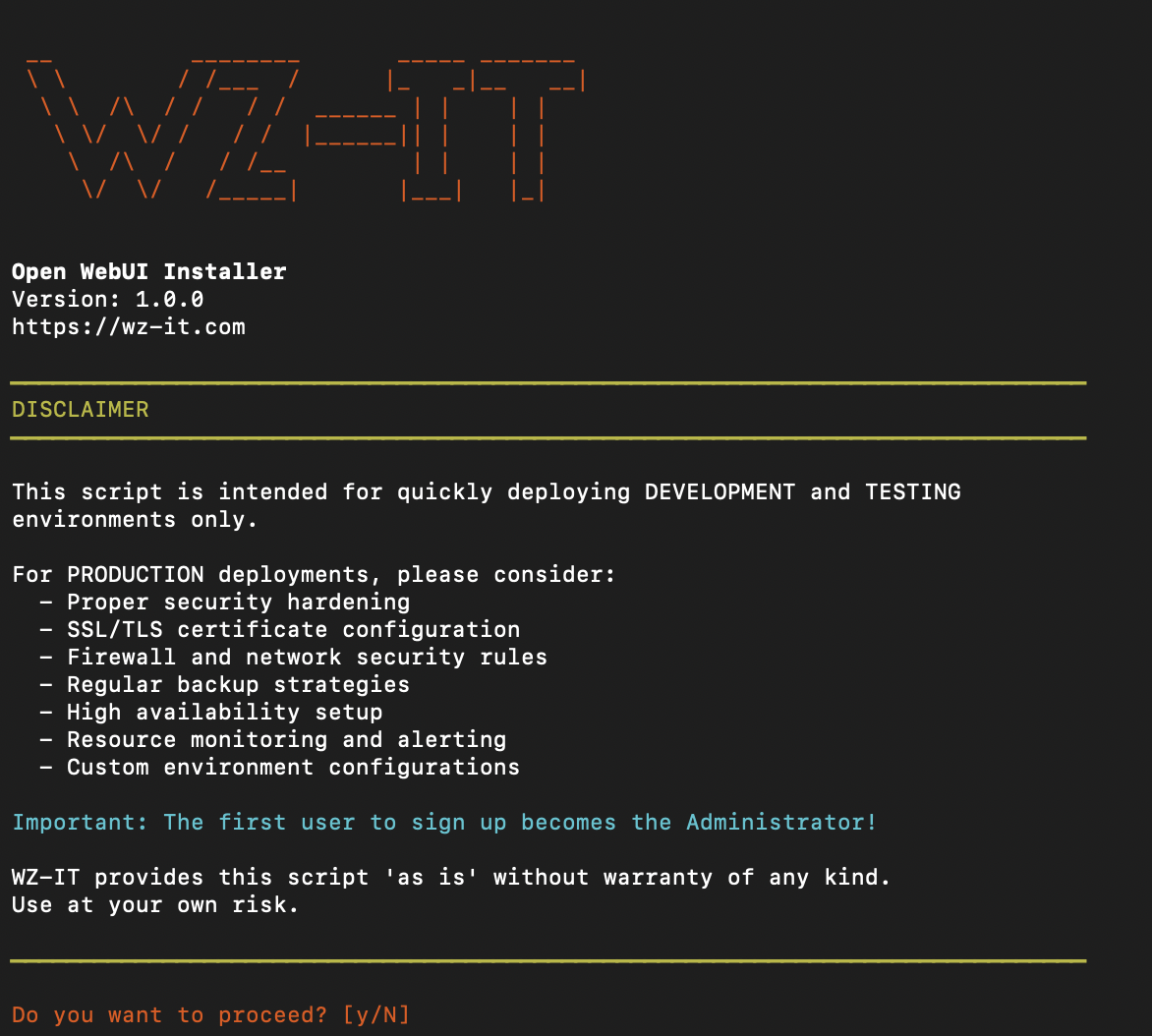
The script guides you through:
- Installation directory - Where to store configuration files (default:
~/open-webui) - Domain configuration - Optional domain for HTTPS setup
- GPU support - Enable NVIDIA GPU acceleration
- Image selection - Choose between full or slim Docker image
Note (as of October 2026): The slim variant only exists without CUDA. If you enable GPU support, pick the full image - combining GPU and slim leads to a pull error because the corresponding tag does not exist upstream.
After configuration, the script:
- Installs Docker if needed
- Creates
docker-compose.ymlwith your settings - Sets up Caddy for HTTPS (if domain provided)
- Starts the containers
- Displays access information
Post-Installation Setup
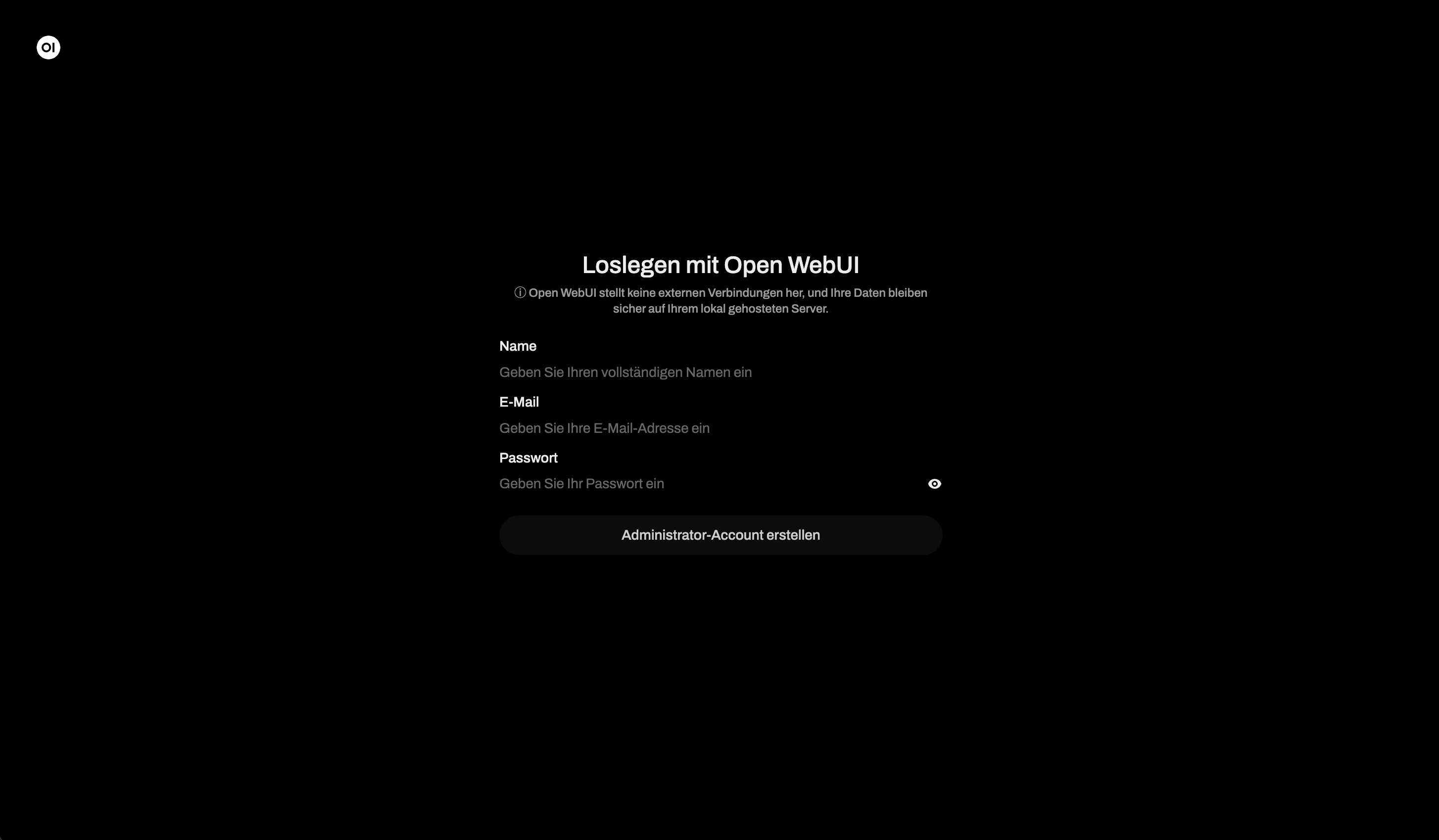
Once installation completes, you'll see the Open WebUI login screen:
First Login
- Navigate to your Open WebUI instance (http://localhost:3000 or your domain)
- Click "Sign up" to create an account
- The first user automatically becomes Administrator
Installation Files
Your installation directory contains:
| File | Purpose |
|---|---|
docker-compose.yml |
Docker service definitions |
.env |
Environment variables and API keys |
Caddyfile |
Caddy reverse proxy config (if using domain) |
Useful Commands
Navigate to your installation directory first:
cd ~/open-webui
Service Management
# View logs
docker compose logs -f
docker compose logs -f open-webui
docker compose logs -f caddy  # If using Caddy

# Stop services
docker compose down

# Start services
docker compose up -d

# Restart services
docker compose restart

# Check status
docker compose ps
Updates
# Pull latest images and restart
docker compose pull
docker compose up -d
Connecting to LLM Backends
Ollama (Local Models)
If running Ollama on the same machine:
cd ~/open-webui
nano .env
Add or uncomment:
OLLAMA_BASE_URL=http://host.docker.internal:11434
Important on Linux (as of October 2026): Docker Desktop resolves host.docker.internal automatically, Docker Engine on Linux does not. The docker-compose.yml generated by the script contains no matching entry, so the name does not resolve. Add the following to the open-webui service in docker-compose.yml:
    extra_hosts:
      - "host.docker.internal:host-gateway"
The special value host-gateway points to the internal IP of the host (Docker documentation). Alternatively, put the host IP directly into OLLAMA_BASE_URL, for example http://172.17.0.1:11434 for the default Docker bridge.
Ollama also has to listen on that address: by default it binds only to 127.0.0.1:11434; the bind address can be changed via OLLAMA_HOST, with systemd via systemctl edit ollama.service (Ollama FAQ). Afterwards, port 11434 should only be reachable from the Docker network via firewall, not from the internet.
Then restart:
docker compose down && docker compose up -d
OpenAI API
Edit .env and add your API key:
OPENAI_API_KEY=sk-your-api-key-here
Restart the container to apply changes.
Instead of a US provider, you can also connect OpenAI-compatible models operated in German data centres of German providers. Ready to use with gpt-oss-120b, Qwen and Ministral, this is available as the AI platform.
Uninstallation
To completely remove Open WebUI:
cd ~/open-webui

# Stop and remove containers
docker compose down

# Also remove volumes (WARNING: deletes all data!)
docker compose down -v

# Remove installation directory
cd ~
rm -rf ~/open-webui
Troubleshooting
Port Already in Use
If ports 80/443 are occupied (when using Caddy):
# Check what's using the ports
sudo lsof -i :80
sudo lsof -i :443
SSL Certificate Issues
# Check Caddy logs
docker compose logs caddy

# Verify DNS
nslookup your-domain.com
GPU Not Detected
# Verify nvidia-docker is working
docker run --rm --gpus all nvidia/cuda:12.6.0-base-ubuntu24.04 nvidia-smi
Container Won't Start
# Check container logs
docker compose logs open-webui

# Check container status
docker ps -a
Source Code
The installer script is open source and available on GitHub:
- Repository: github.com/wzitcom/public-scripts
- Open WebUI Installer: open-source-apps/open-webui
Feel free to review, fork, or contribute!
Disclaimer
This script is intended for quickly deploying development and testing environments.
For production deployments, please consider:
- Proper security hardening
- SSL/TLS certificate configuration
- Firewall and network security rules
- Regular backup strategies
- High availability setup
- Resource monitoring and alerting
- Custom environment configurations
Need a production-ready setup? Talk to WZ-IT about Open WebUI deployment, integration and operations.