

Interested in the product showcased here?
WZ-IT can take care of consulting, installation, support, operation, maintenance, and monitoring for you.
Book your free, no-obligation call here:
Schedule a meeting.
Twenty CRM is a modern, lean alternative to comprehensive CRM systems like Odoo. As an open-source solution, it allows you to maintain full control over your customer data while benefiting from a user-friendly, modern interface. In this guide, we'll show you how to install Twenty CRM on an Ubuntu 24.04 server and automatically set up SSL certificates from Let's Encrypt with Caddy.
Table of Contents
- Prerequisites
- Step 1: Prepare the Server
- Step 2: Install Docker and Docker Compose
- Step 3: Create User for Twenty CRM
- Step 4: Prepare Twenty CRM Installation
- Step 5: Configure Environment Variables
- Step 6: Set up Caddy as Reverse Proxy
- Step 7: Start Twenty CRM
- Step 8: Initial Setup
- Updates
- Firewall Configuration
- Conclusion
Prerequisites
- An Ubuntu 24.04 server (e.g., a VPS from Hetzner or another provider)
- SSH access to the server
- Domain pointing to the server (at least an A record) (e.g.,
crm.example.com)
In our example, we use the domain crm-demo.wz-it.com. You can replace this domain in the guide with your own domain. We've set the domain with an A record pointing to the IP address of the server where we want to install Twenty CRM. Here's an excerpt from the DNS configuration:

Step 1: Prepare the Server
We log in via SSH as root or a user with sudo privileges on the server and update the package list:
apt update && apt upgrade -y
Step 2: Install Docker and Docker Compose
curl -fsSL https://get.docker.com -o get-docker.sh
sh get-docker.sh
rm get-docker.sh
This script installs the latest version of Docker and Docker Compose. Feel free to check the content of the script to understand what exactly happens. Generally, it's not a good idea to blindly execute scripts from the internet, but in this case, it's a common method to install Docker.
Step 3: Create User for Twenty CRM
We create a new user that will later be used for the Twenty CRM installation. We also add the user to the Docker group so they can execute Docker commands without sudo. This is important because Twenty CRM runs in Docker containers and the user needs access to Docker resources.
adduser --system --group --home /opt/twenty twenty
sudo usermod -aG docker twenty
Step 4: Prepare Twenty CRM Installation
We switch to the user directory and create the necessary files for Twenty CRM:
cd /opt/twenty
First, we create the Docker Compose configuration. It is based on the official docker-compose.yml (as of October 2026) and adds Caddy as a reverse proxy:
sudo -u twenty nano docker-compose.yml
Add the following content:
name: twenty
services:
  server:
    image: 'twentycrm/twenty:${TAG:-latest}'
    volumes:
      - server-local-data:/app/packages/twenty-server/.local-storage
    environment:
      NODE_PORT: 3000
      PG_DATABASE_URL: 'postgres://${PG_DATABASE_USER:-postgres}:${PG_DATABASE_PASSWORD:-postgres}@${PG_DATABASE_HOST:-db}:${PG_DATABASE_PORT:-5432}/${PG_DATABASE_NAME:-default}'
      SERVER_URL: '${SERVER_URL}'
      REDIS_URL: '${REDIS_URL:-redis://redis:6379}'
      DISABLE_DB_MIGRATIONS: '${DISABLE_DB_MIGRATIONS}'
      DISABLE_CRON_JOBS_REGISTRATION: '${DISABLE_CRON_JOBS_REGISTRATION}'
      STORAGE_TYPE: '${STORAGE_TYPE}'
      ENCRYPTION_KEY: '${ENCRYPTION_KEY}'
    depends_on:
      db:
        condition: service_healthy
      redis:
        condition: service_healthy
    healthcheck:
      test: 'curl --fail http://localhost:3000/healthz'
      interval: 5s
      timeout: 5s
      retries: 20
    restart: always
    networks:
      - twenty-network
  worker:
    image: 'twentycrm/twenty:${TAG:-latest}'
    volumes:
      - server-local-data:/app/packages/twenty-server/.local-storage
    command:
      - yarn
      - 'worker:prod'
    environment:
      PG_DATABASE_URL: 'postgres://${PG_DATABASE_USER:-postgres}:${PG_DATABASE_PASSWORD:-postgres}@${PG_DATABASE_HOST:-db}:${PG_DATABASE_PORT:-5432}/${PG_DATABASE_NAME:-default}'
      SERVER_URL: '${SERVER_URL}'
      REDIS_URL: '${REDIS_URL:-redis://redis:6379}'
      DISABLE_DB_MIGRATIONS: 'true'
      DISABLE_CRON_JOBS_REGISTRATION: 'true'
      STORAGE_TYPE: '${STORAGE_TYPE}'
      ENCRYPTION_KEY: '${ENCRYPTION_KEY}'
    depends_on:
      db:
        condition: service_healthy
      server:
        condition: service_healthy
    restart: always
    networks:
      - twenty-network
  db:
    image: 'postgres:16'
    volumes:
      - 'db-data:/var/lib/postgresql/data'
    environment:
      POSTGRES_DB: '${PG_DATABASE_NAME:-default}'
      POSTGRES_USER: '${PG_DATABASE_USER:-postgres}'
      POSTGRES_PASSWORD: '${PG_DATABASE_PASSWORD:-postgres}'
    healthcheck:
      test: 'pg_isready -U ${PG_DATABASE_USER:-postgres} -h localhost -d postgres'
      interval: 5s
      timeout: 5s
      retries: 10
    restart: always
    networks:
      - twenty-network
  redis:
    image: redis
    restart: always
    command:
      - '--maxmemory-policy'
      - noeviction
    healthcheck:
      test: ['CMD', 'redis-cli', 'ping']
      interval: 5s
      timeout: 5s
      retries: 10
    networks:
      - twenty-network
  caddy:
    image: caddy
    ports:
      - "80:80"
      - "443:443"
    volumes:
      - ./caddy/data/:/data/
      - ./caddy/config/:/config/
      - ./caddy/Caddyfile:/etc/caddy/Caddyfile
    restart: always
    networks:
      - twenty-network
volumes:
  db-data: null
  server-local-data: null
networks:
  twenty-network:
    driver: bridge
Step 5: Configure Environment Variables
Create the .env file with the necessary configurations:
sudo -u twenty nano .env
Add the following content:
TAG=v2.46 # Optional: Specify a specific version of Twenty CRM, e.g., v2.46
ENCRYPTION_KEY=INSERT_GENERATED_SECRET_HERE
PG_DATABASE_USER=postgres
PG_DATABASE_PASSWORD=INSERT_SECURE_PASSWORD_HERE
PG_DATABASE_NAME=default
PG_DATABASE_HOST=db
PG_DATABASE_PORT=5432
DISABLE_DB_MIGRATIONS=false
DISABLE_CRON_JOBS_REGISTRATION=false
REDIS_URL=redis://redis:6379
SERVER_URL=https://crm-demo.wz-it.com
STORAGE_TYPE=local
Generate a secure ENCRYPTION_KEY and database password with the following commands. The password goes into the database URL as is and should therefore contain no special characters:
# Generate ENCRYPTION_KEY
openssl rand -base64 32

# Generate secure database password without special characters
openssl rand -hex 32
Since version 2.5, Twenty encrypts stored secrets with ENCRYPTION_KEY; the former APP_SECRET variable is only needed for older instances set up before ENCRYPTION_KEY existed (upgrade guide, .env.example). As of October 2026, v2.46.0 from 12 October 2026 is the current version.
Replace:
INSERT_GENERATED_SECRET_HEREwith the generated ENCRYPTION_KEYINSERT_SECURE_PASSWORD_HEREwith the generated database passwordhttps://crm-demo.wz-it.comin SERVER_URL with your own domain (e.g.,https://crm.yourdomain.com)
Step 6: Set up Caddy as Reverse Proxy
Create the directories for Caddy and the configuration file:
sudo -u twenty mkdir -p /opt/twenty/caddy
Create the Caddyfile file in the Caddy directory:
sudo -u twenty nano /opt/twenty/caddy/Caddyfile
Add the following content:
{
    email [email protected] # Your email address for Let's Encrypt notifications
}

crm-demo.wz-it.com { # Replace this with your domain
    reverse_proxy http://server:3000
}
Replace crm-demo.wz-it.com with your own domain and [email protected] with your email address. The email address is used for Let's Encrypt certificate registration.
Step 7: Start Twenty CRM
We now start Twenty CRM with Docker Compose:
sudo -u twenty docker compose up -d
Twenty CRM will now start and should be accessible via HTTPS after a few minutes. You can verify this by opening your domain in your browser (in our example that would be https://crm-demo.wz-it.com, for you it's the domain you configured in the Caddyfile).
Troubleshooting: Manual Database Initialization
On startup, the server container checks whether the core schema exists and initializes an empty database automatically (entrypoint script). If you still cannot log in or encounter database errors, you can trigger the initialization manually:
# Enter the server container
sudo -u twenty docker compose exec server bash

# Navigate to the correct directory
cd /app/packages/twenty-server

# Initialize the database
yarn database:init:prod
After successful initialization, exit the container with exit and restart the server:
sudo -u twenty docker compose restart server
Step 8: Initial Setup
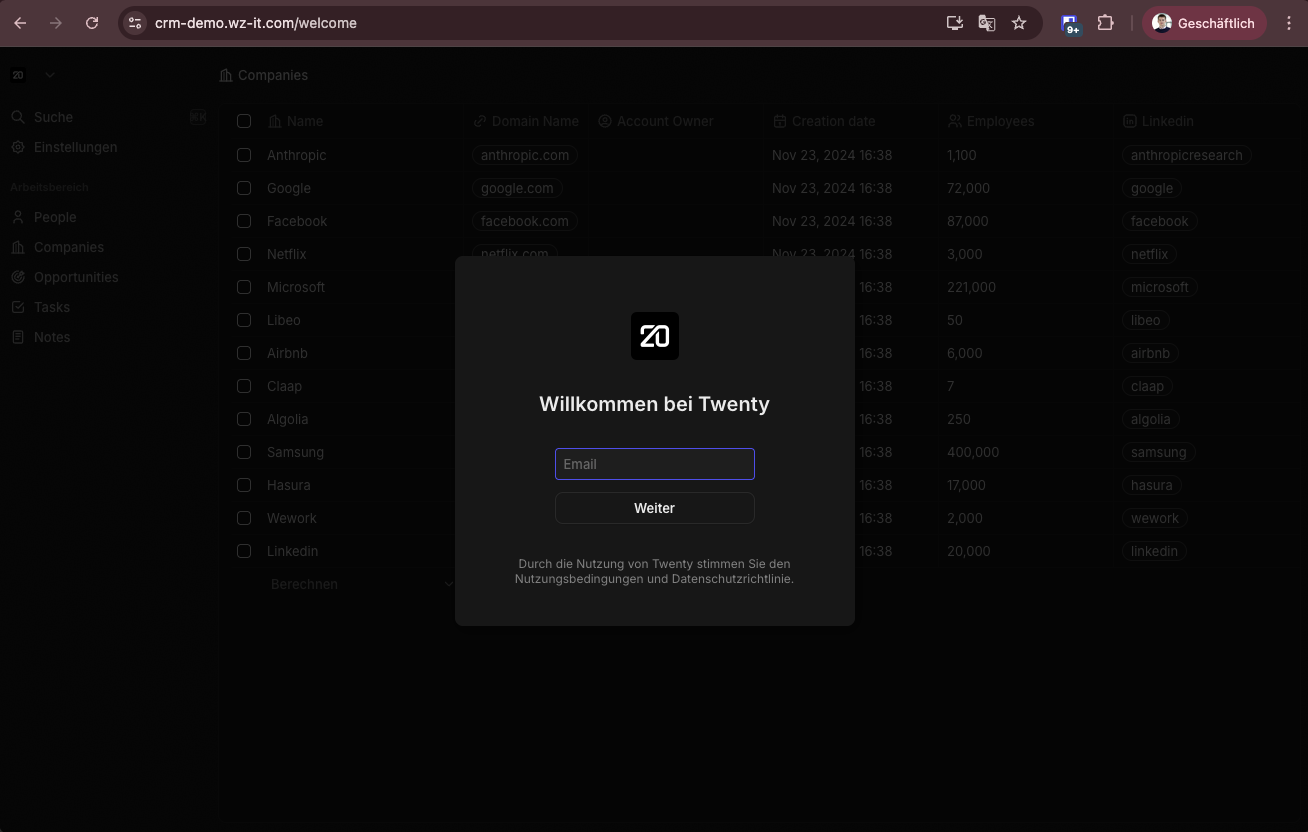
After successful startup, you can access Twenty CRM via your domain. You will be redirected to the login page:
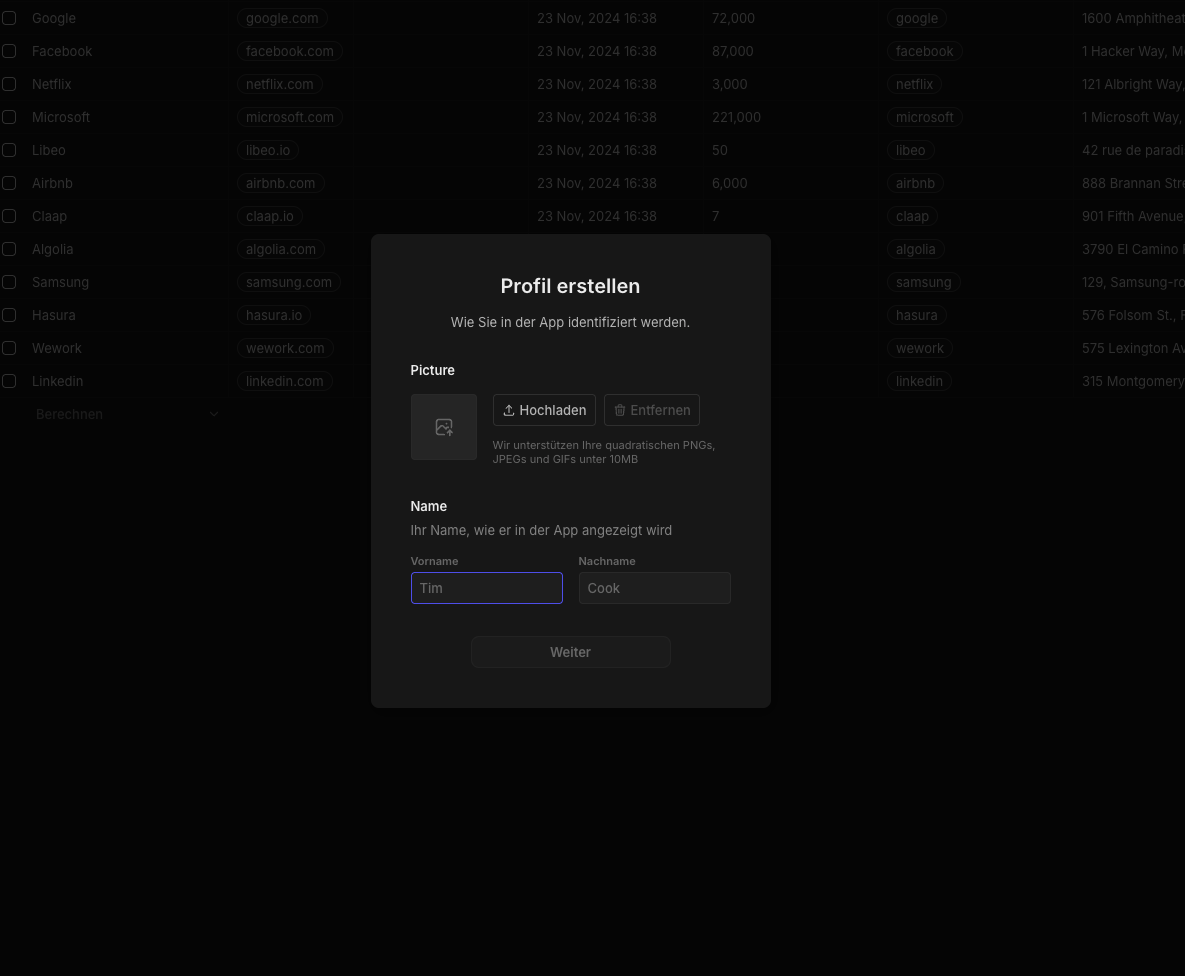
On first access, you'll be guided through the initial setup where you can create your admin account:
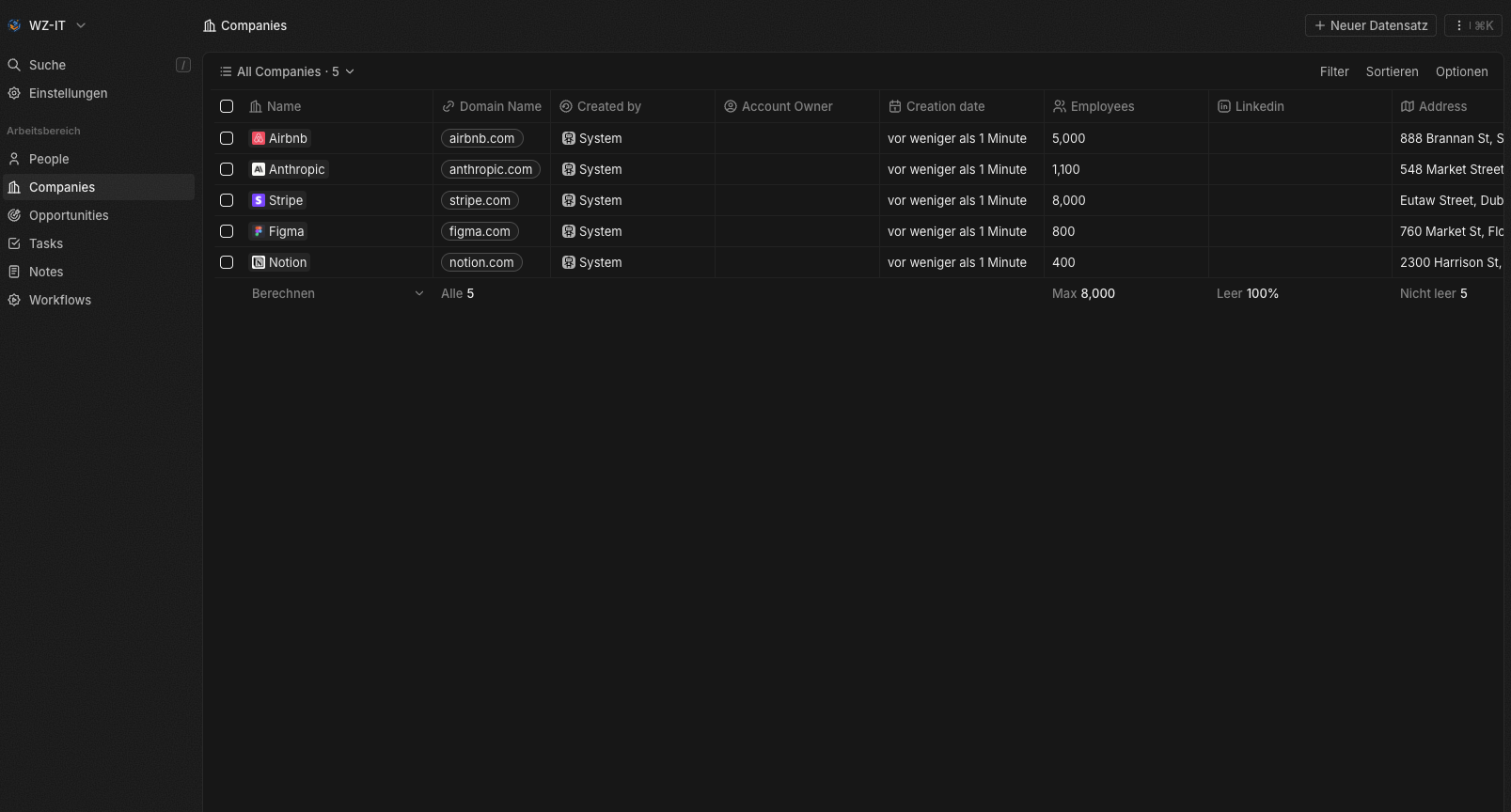
After setup, you'll have access to the modern Twenty CRM dashboard:
Updates
Since version 1.23, Twenty supports cross-version upgrades: you can jump directly to the latest version by changing TAG in the .env file and running docker compose pull and docker compose up -d. Instances older than 1.23 must be upgraded incrementally through each tagged major version, and from version 2.34 onwards PostgreSQL 15 or newer is required (upgrade guide). Create a database backup before every update.
Firewall Configuration
If you have set up a firewall on your server, make sure ports 80 (HTTP) and 443 (HTTPS) are open. This is necessary for Caddy to receive requests via HTTP and HTTPS.
Conclusion
With this guide, you have successfully installed Twenty CRM on an Ubuntu 24.04 server and set up an SSL certificate from Let's Encrypt with Caddy. Twenty CRM offers a modern, user-friendly alternative to more complex CRM systems like Odoo and is particularly suitable for small to medium-sized businesses looking for a lean CRM solution.
For more information and documentation, visit the official Twenty CRM website: https://twenty.com/ and the GitHub repository: https://github.com/twentyhq/twenty.